




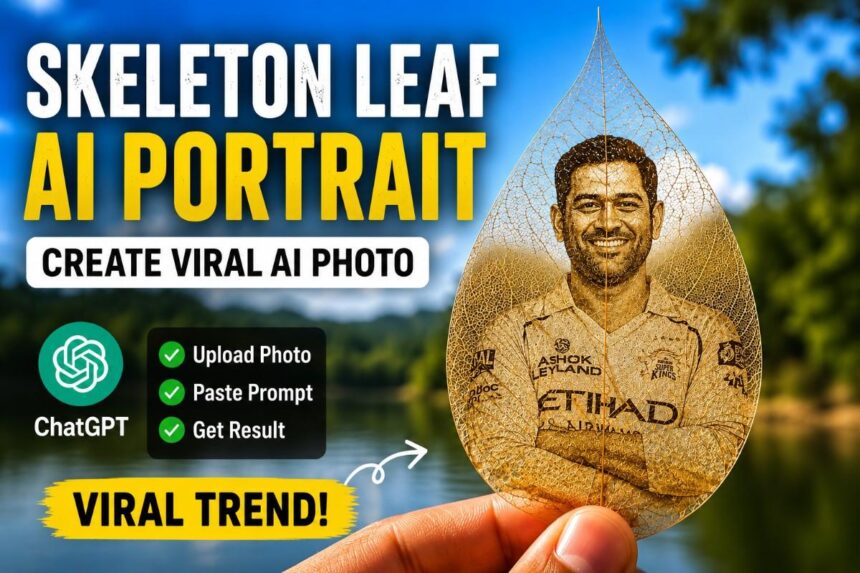
Turn any normal photo into an ultra-realistic skeleton leaf engraving portrait using AI. This trend is going viral on Instagram Reels, Shorts, and Pinterest because it looks cinematic, artistic, and incredibly realisti
What Is a Skeleton Leaf AI Portrait?
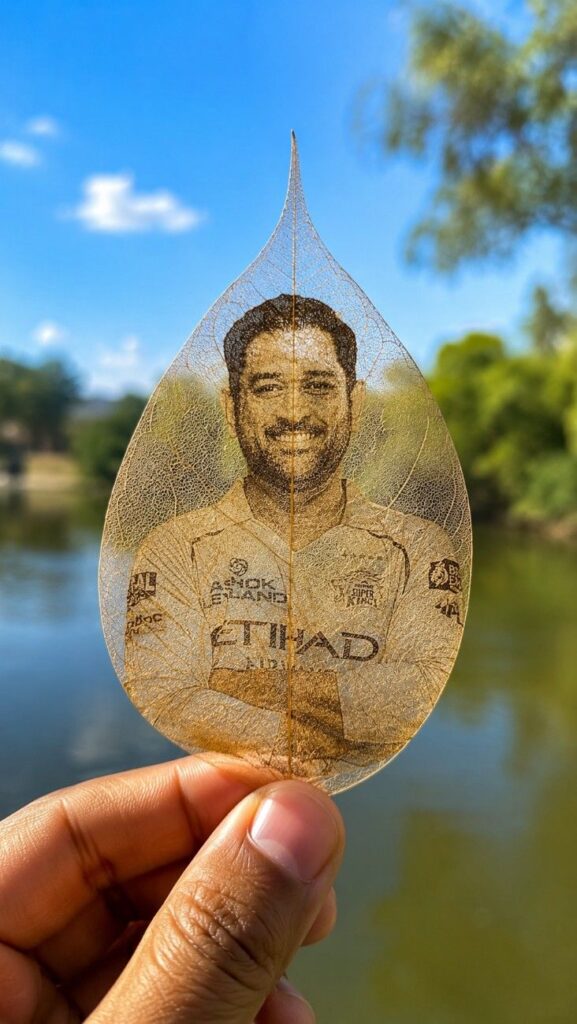
A Skeleton Leaf AI Portrait is a hyper-realistic macro photography style image where a transparent leaf is held between fingers, and a detailed engraved portrait is naturally etched inside the leaf veins.
The final result looks:
- Ultra realistic
- Cinematic
- DSLR quality
- Perfect for Instagram Reels & thumbnails
- Premium AI artwork style
Best Prompt for ChatGPT (Copy & Paste)
A hyper realistic macro photo of a transparent skeleton leaf held between fingers, with a detailed engraved portrait naturally etched inside the leaf veins, cinematic outdoor background, blue sky, greenery, shallow depth of field, warm sunlight, DSLR quality, ultra detailed, realistic textures, 8K, vertical 9:16.How to Create This Image
Step 1:
Open ChatGPT.
Step 2:
Upload your photo.
Step 3:
Copy the prompt above.
Step 4:
Paste the prompt inside ChatGPT.
Step 5:
Click Generate.
Within seconds, ChatGPT will create a cinematic skeleton leaf portrait image.
Best Tips for Viral Results 🔥
- Use clear face photos
- Front-facing images work best
- Use smiling expressions for realistic engraving
- Choose bright outdoor backgrounds
- Always use 9:16 ratio for Reels
Best Use Cases
- Instagram Reels
- WhatsApp Status
- YouTube Shorts
- AI Art Posts
- Viral Trend Content
- Thumbnail Design
- DP/Profile Photos
Why This Trend Is Going Viral
This style combines:
- AI realism
- Nature aesthetics
- Cinematic photography
- Luxury visual vibes
- Emotional artistic effect
That’s why creators are getting massive engagement using this trend.
Pro Editing Tips
For even better results:
- Add slow zoom effects in CapCut
- Use cinematic music
- Add glowing particles
- Apply HDR filters
- Use smooth camera motion